Start from a fresh Linux server and finish with LyEve's engine, LyEve Console, PostgreSQL and a Caddy proxy running from two files. You sign in at an https address, with a certificate Caddy obtained for you.
Steps 9 and 10 happen in LyEve, and each shows two ways to do it: in the console, or with the engine's API from a terminal. Pick one, and every part of the page that offers both switches to it.
It follows the Docker Compose page in our docs, with every command run and its output checked.
What we ran it on
We ran every step on November 11, 2026, on an x86_64 machine with Ubuntu 26.04.1 LTS, Docker Engine 29.9.3 and Docker Compose v5.7.0. We ran the LyEve engine v0.62.0 and admin console v0.28.0, with the postgres:16 image (PostgreSQL 16.15) and caddy:2 (Caddy 2.11.9).
That machine is not a rented VPS and has no public DNS name. No public certificate authority could issue it a certificate. We ran the same two files with Caddy issuing certificates from its own local authority, a three-line change shown in step 4. We checked every https answer against that authority. This guide names no server size, because we did not measure the smallest one LyEve fits.
What you need
- A Linux server with Docker Engine and the Docker Compose plugin. Docker's install guide covers each distribution.
- Ports 80 and 443 open to the internet, in your provider's firewall and on the server. Caddy uses both to obtain certificates and to redirect plain http to https.
- A domain, with two DNS A records pointing at the server:
admin.yourdomain.comfor the console andapi.yourdomain.comfor the Content API your sites call. openssl, to generate the secrets. Most distributions ship it.
1. Check Docker
docker --version
docker compose version
Each prints a version. Ours printed Docker version 29.9.3, build 5457199 and Docker Compose version v5.7.0.
2. Check that both names reach the server
getent hosts admin.yourdomain.com
getent hosts api.yourdomain.com
Each prints your server's address beside the name. A name that prints nothing has no record yet. Fix it before you go on, because Caddy cannot get a certificate for a name that does not point at the server.
3. Write the Compose file
Make a directory for the stack. Every later command runs from it.
mkdir -p ~/lyeve && cd ~/lyeveSave this as docker-compose.yml. It is the file from our docs, with both images pinned to the versions this guide was tested with:
# docker-compose.yml
services:
  db:
    image: postgres:16
    restart: unless-stopped
    # The database serves TLS so the engine connects with sslmode=require.
    # The Debian-based image ships a self-signed certificate, which
    # sslmode=require accepts.
    command:
      - -c
      - ssl=on
      - -c
      - ssl_cert_file=/etc/ssl/certs/ssl-cert-snakeoil.pem
      - -c
      - ssl_key_file=/etc/ssl/private/ssl-cert-snakeoil.key
    environment:
      POSTGRES_USER: lyeve
      POSTGRES_PASSWORD: ${DB_PASSWORD}
      POSTGRES_DB: lyeve
    volumes:
      - db-data:/var/lib/postgresql/data
    healthcheck:
      test: ["CMD-SHELL", "pg_isready -U lyeve -d lyeve"]
      interval: 10s
      timeout: 5s
      retries: 5

  engine:
    image: ghcr.io/lyeve-labs/lyeve-core:0.62.0
    restart: unless-stopped
    mem_limit: 1g
    environment:
      DATABASE_URL: postgres://lyeve:${DB_PASSWORD}@db:5432/lyeve?sslmode=require
      JWT_SECRET: ${JWT_SECRET}
      ENCRYPTION_KEY: ${ENCRYPTION_KEY}
      LYEVE_AUDIT_HMAC_KEY: ${AUDIT_HMAC_KEY}
      LYEVE_CONSOLE_KEY: ${LYEVE_CONSOLE_KEY}
      RATE_LIMIT_RPS: "100"
      SECURE_COOKIE: "true"
      CORS_ORIGINS: https://admin.yourdomain.com
      LYEVE_CONSOLE_URL: https://admin.yourdomain.com
      TRUSTED_PROXIES: 172.28.0.0/24
      LYEVE_LICENSE_KEY: ${LYEVE_LICENSE_KEY:-}
      LYEVE_PLUGINS: ${LYEVE_PLUGINS:-}
    volumes:
      - engine-state:/var/lib/lyeve
      - uploads-data:/app/uploads
    depends_on:
      db:
        condition: service_healthy

  admin:
    image: ghcr.io/lyeve-labs/lyeve-console:0.28.0
    restart: unless-stopped
    environment:
      ORIGIN: https://admin.yourdomain.com
      CORE_INTERNAL_URL: http://proxy:8080
      CORE_API_INTERNAL_URL: http://proxy:8080
      LYEVE_CONSOLE_KEY: ${LYEVE_CONSOLE_KEY}
      ADDRESS_HEADER: X-Forwarded-For
      XFF_DEPTH: "1"
    depends_on:
      - proxy

  proxy:
    image: caddy:2
    restart: unless-stopped
    ports:
      - "80:80"
      - "443:443"
    volumes:
      - ./Caddyfile:/etc/caddy/Caddyfile:ro
      - caddy-data:/data
    depends_on:
      - engine

networks:
  default:
    ipam:
      config:
        - subnet: 172.28.0.0/24

volumes:
  db-data:
  engine-state:
  uploads-data:
  caddy-data:
The proxy is the one service that opens ports on the server. The engine and the console are reachable only through it.
This stack runs PostgreSQL. LyEve runs the same on MySQL 8.0 or 8.4 and on SQL Server 2019 or later, Azure SQL included, and Supported databases gives the address for each.
4. Write the Caddyfile
Save this as Caddyfile in the same directory:
# Caddyfile

# Reachable inside the Compose network only. The console's server sends its
# engine calls here. The hop is plain HTTP, so the proxy tells the engine the
# browser's side was HTTPS. Without that, SECURE_COOKIE=true answers every
# call with a redirect.
http://proxy:8080 {
  handle /api/admin/* {
    reverse_proxy engine:3001 {
      header_up X-Forwarded-Proto https
    }
  }
  handle {
    reverse_proxy engine:3002 {
      header_up X-Forwarded-Proto https
    }
  }
}

# The console. The browser also calls the engine's APIs on this origin.
admin.yourdomain.com {
  handle /api/admin/* {
    reverse_proxy engine:3001
  }
  handle /api/* {
    reverse_proxy engine:3002
  }
  handle /.well-known/* {
    reverse_proxy engine:3002
  }
  handle {
    reverse_proxy admin:3002
  }
}

# The Content API for your sites and apps.
api.yourdomain.com {
  reverse_proxy engine:3002
}
For each site block with a public name, Caddy obtains a certificate from Let's Encrypt or ZeroSSL, its two default authorities, and redirects plain http to https.
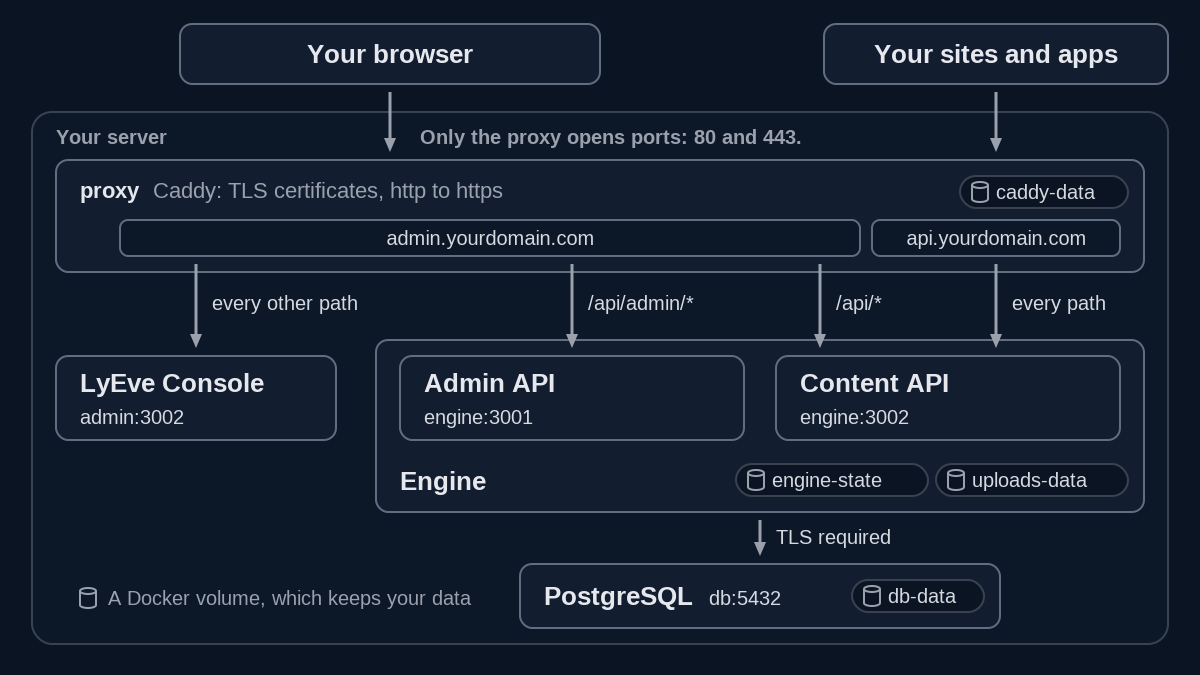 The console and the engine share admin.yourdomain.com, and only the proxy is reachable from outside.
To rehearse on a machine with no public name, as we did, put this block at the very top of the Caddyfile. Caddy then issues every certificate from its own local authority, which browsers do not trust. Take it out on the real server.
{
  local_certs
}
5. Put your domain in both files
Set your domain once and replace the placeholder in both files:
DOMAIN=example.org
sed -i "s/yourdomain\.com/$DOMAIN/g" docker-compose.yml Caddyfile
grep -c "$DOMAIN" docker-compose.yml Caddyfile
docker-compose.yml:3
Caddyfile:2Use your own domain in place of example.org. Three lines of the Compose file name the console's address, and two lines of the Caddyfile name the two sites.
6. Generate the secrets
Compose reads ${VAR} values from a .env file beside the Compose file. This writes one with new random secrets and makes it readable by your user alone:
cat > .env <<SECRETS
DB_PASSWORD=$(openssl rand -hex 24)
JWT_SECRET=$(openssl rand -hex 32)
ENCRYPTION_KEY=$(openssl rand -hex 32)
AUDIT_HMAC_KEY=$(openssl rand -hex 32)
LYEVE_CONSOLE_KEY=$(openssl rand -hex 32)
LYEVE_LICENSE_KEY=
LYEVE_PLUGINS=
SECRETS
chmod 600 .env
There is no placeholder to replace, because every value is generated on your server. Keep the file out of version control. Keep a copy of JWT_SECRET and ENCRYPTION_KEY somewhere durable. ENCRYPTION_KEY encrypts the secrets LyEve stores, such as MFA seeds and OAuth client secrets, so a new value makes them unreadable.
An empty LYEVE_LICENSE_KEY runs the free features. An empty LYEVE_PLUGINS starts every feature the license allows.
7. Start the stack
docker compose up -d
docker compose ps
Compose pulls four images and starts the database first. The engine waits for the database's health check, because it applies its migrations when it starts. The proxy and the console follow. Run docker compose ps again until its STATUS column shows (healthy) for db, engine and admin. The proxy has no health check and shows Up.
8. Check the engine
docker compose logs engine | grep -o '"msg":"all plugins started","running":[0-9]*'
docker compose exec proxy wget -qO- http://engine:3001/readyz
The first command prints "msg":"all plugins started","running":32. Those 32 are the free plugins, the ones that run with no license key. The second prints a JSON answer that begins {"status":"ok", which means the engine is ready. It runs wget from the proxy's container, because the engine's image has no shell and no wget of its own (what the image holds).
The engine's log also holds WARN lines. None of them stops the engine.
9. Create the first administrator
A fresh install has no account. Creating the first one takes a setup token, which the engine prints to its standard error, outside its log, while no account exists. docker compose logs shows it:
docker compose logs engine | grep -oE 'setup_token=[0-9a-f]+' | tail -n 1The output is setup_token= and a 48-character token. Each start of the engine prints a new token and only the newest works, which is why the command keeps the last line.
Choose a password of at least 12 characters, with an uppercase letter, a lowercase letter and a digit.
Console v0.28.0
Open https://admin.yourdomain.com in a browser. A fresh install sends you to /setup. On the setup page:
- Paste the part after
setup_token=into Setup token. - Enter an email and the password.
- Repeat the password in Confirm password.
- Select Create super admin account.
The console signs you in and opens the dashboard.
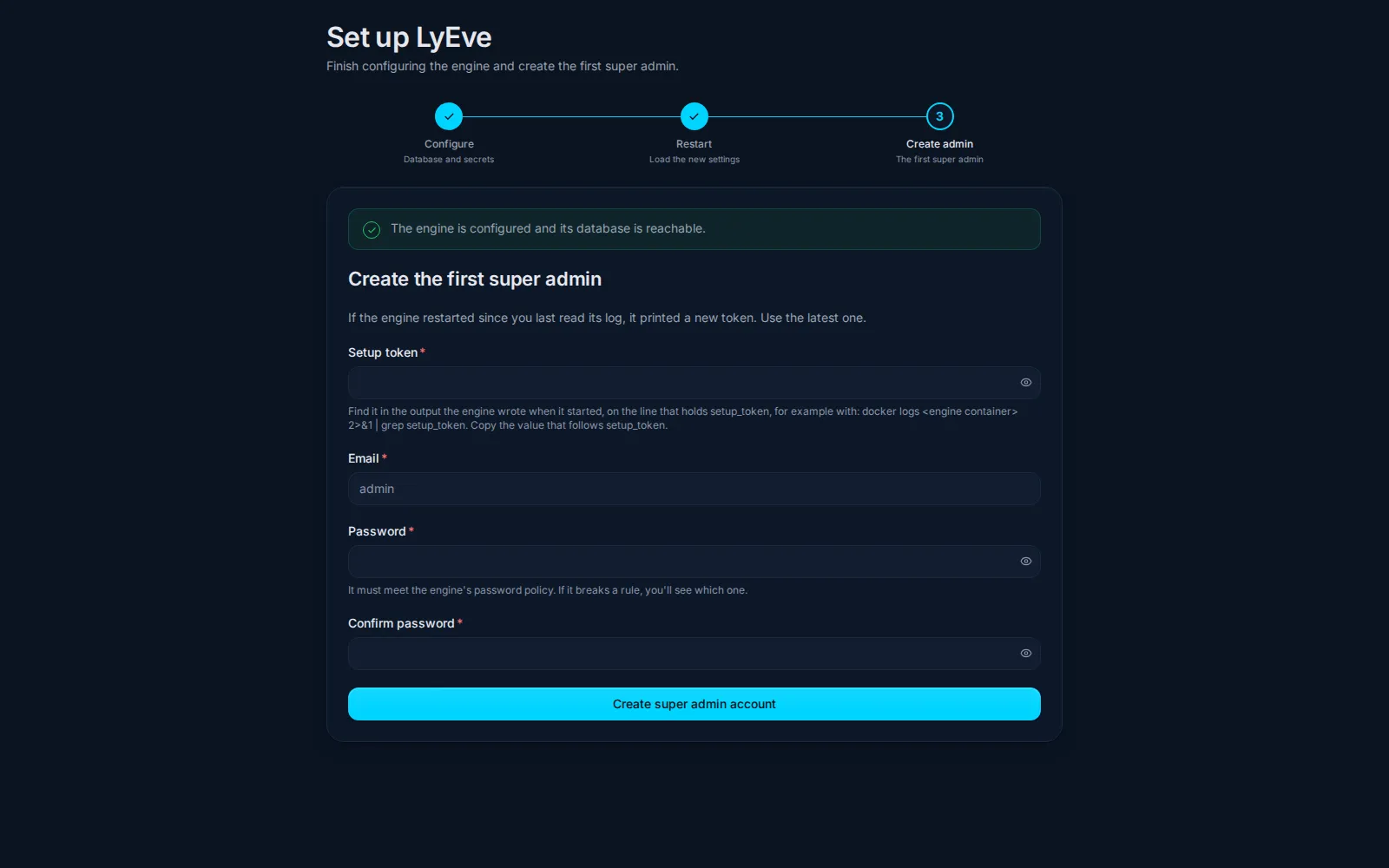 The console's first-run page, with fields for the setup token, an email and a password.
Engine API v0.62.0
The console's address also serves the engine's Admin API, under /api/admin/. Ask the engine whether it still needs its first administrator:
curl -s https://admin.yourdomain.com/api/admin/setup{"setup_required":true,"token_source":"log"}Then create the account. Put your email, the password and the part after setup_token= in the JSON:
curl -s -o /dev/null -w '%{http_code}\n' \
  -X POST https://admin.yourdomain.com/api/admin/setup \
  -H 'Content-Type: application/json' \
  -d '{"email":"you@example.com","password":"<password>","setup_token":"<token>"}'
It prints 201. The new account holds the super_admin role. Run the first command again, and the engine answers {"setup_required":false}.
The token stops working once that account exists.
10. Sign in
Console v0.28.0
Open https://admin.yourdomain.com/login in a private window and sign in with the same email and password. The dashboard opens.
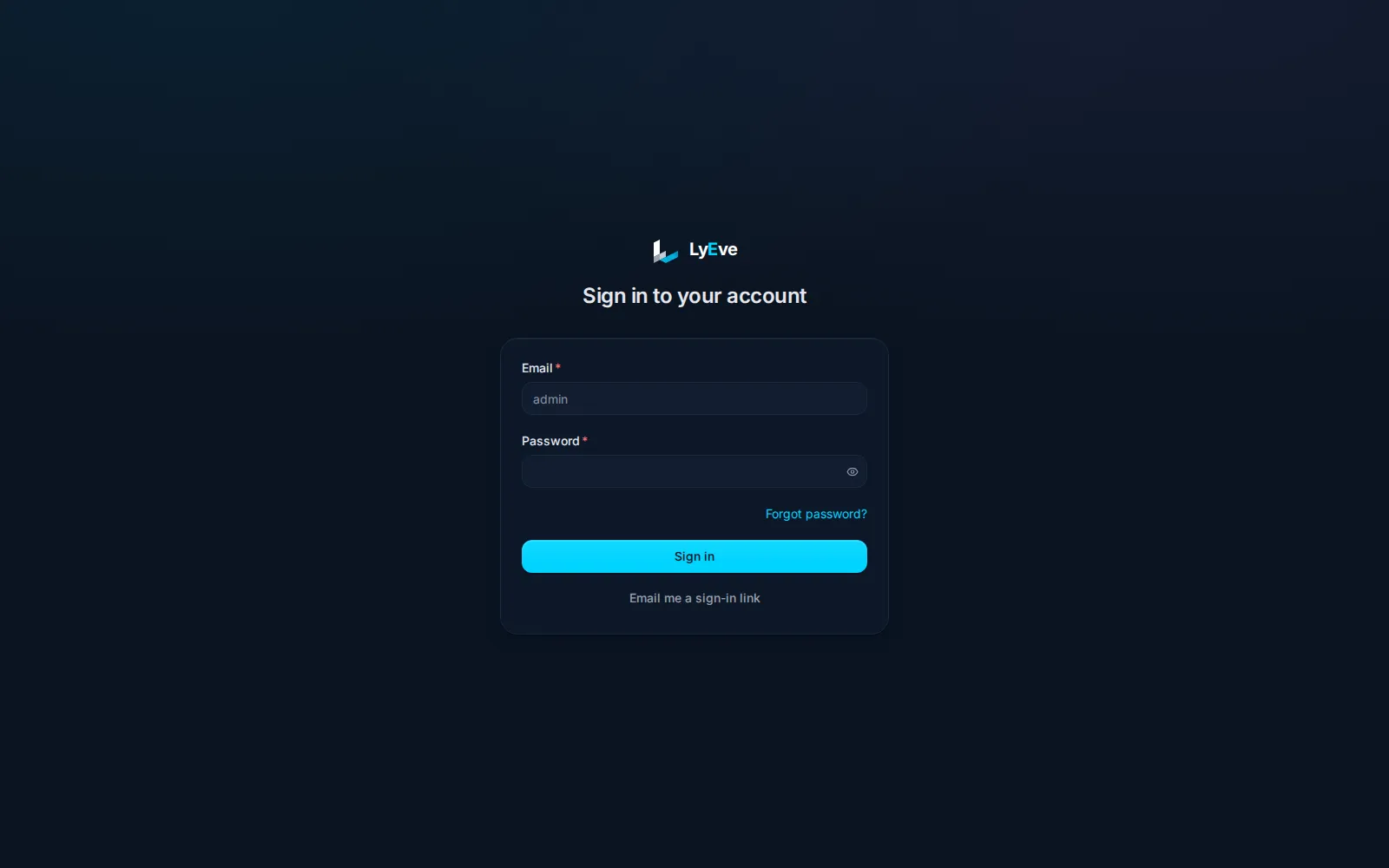 The console's sign-in page.
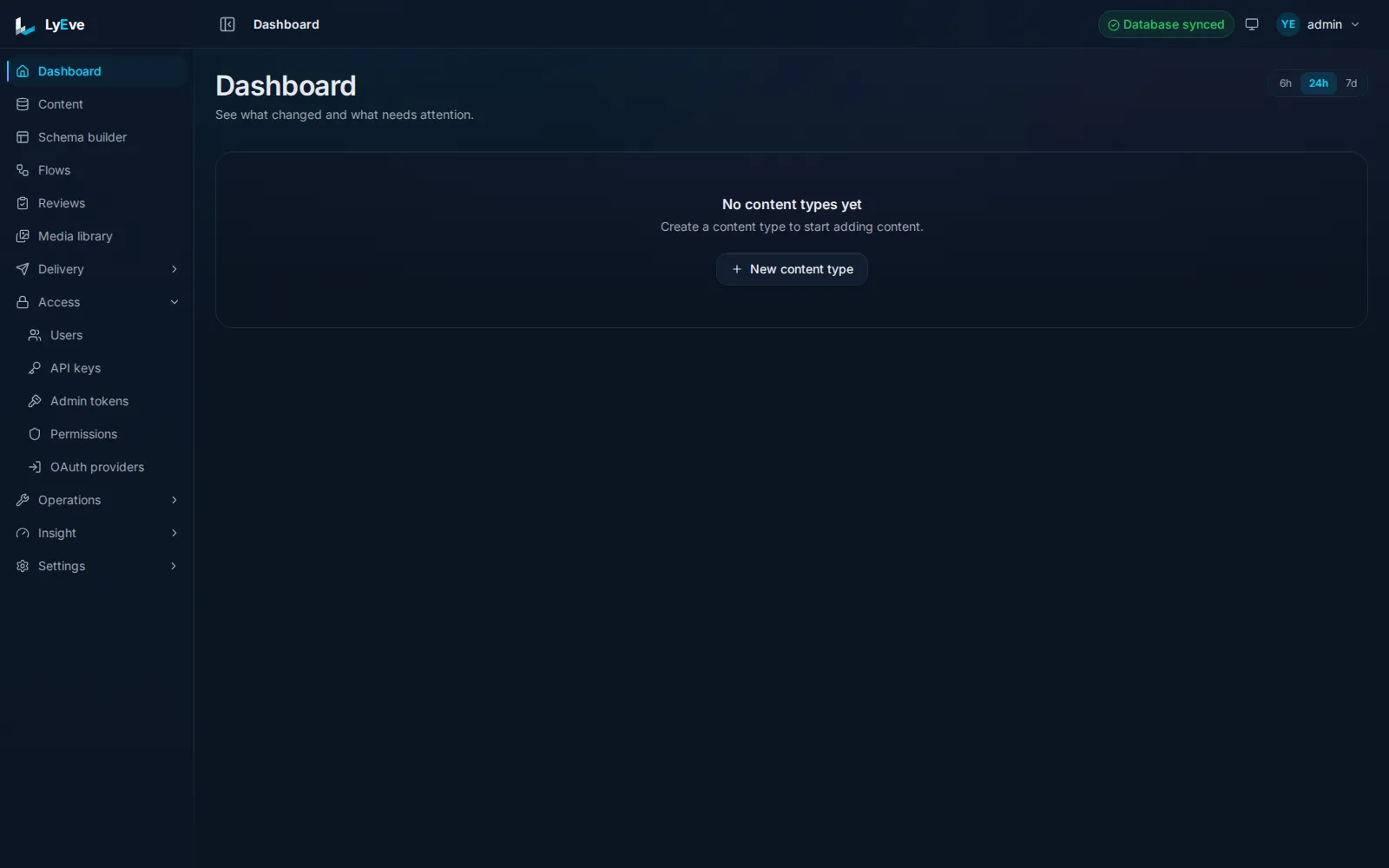 The console's dashboard after the first sign-in.
Engine API v0.62.0
Sign in with the same email and password. The answer holds a bearer token, and this command keeps it in TOKEN:
TOKEN=$(curl -s -X POST https://admin.yourdomain.com/api/admin/auth/login \
  -H 'Content-Type: application/json' \
  -d '{"email":"you@example.com","password":"<password>"}' \
  | grep -o '"token":"[^"]*"' | cut -d'"' -f4)
Then read your own account with the token:
curl -s -H "Authorization: Bearer $TOKEN" \
https://admin.yourdomain.com/api/admin/auth/me | grep -o '"roles":\[[^]]*\]'"roles":["super_admin"]The token expires after 15 minutes. Sign in again when a call answers 401.
Check that it worked
From any machine:
curl -s -o /dev/null -w '%{http_code}\n' https://admin.yourdomain.com/login
curl -sI http://admin.yourdomain.com/ | grep -iE '^(HTTP|location)'
curl -s https://api.yourdomain.com/healthz | grep -o '"status":"[a-z]*"'
200
HTTP/1.1 308 Permanent Redirect
Location: https://admin.yourdomain.com/
"status":"ok"curl refuses a certificate it does not trust, so the 200 means the sign-in page came back over a valid certificate. Plain http moves to https, and the Content API answers its health check over TLS. To see who issued the certificate:
curl -svI https://admin.yourdomain.com/ 2>&1 | grep 'issuer:'On a server with a public name, the issuer is Let's Encrypt or ZeroSSL. In our rehearsal it was CN=Caddy Local Authority - ECC Intermediate.
What holds your data
Compose created four volumes:
db-dataholds the database: every entry, user and setting.engine-stateholds the signing key and the cached license. Lose it and every issued token stops working, so every user signs in again.uploads-dataholds uploaded media, while storage stays on local disk, the default.caddy-dataholds the certificates.
Back up db-data and uploads-data together, and keep a copy of engine-state. The backup and restore page covers the rest.
When a step fails
docker compose up stops with address already in use
Another program on the server holds port 80 or 443, often a web server installed with the image. Find it, then stop it or move it:
sudo ss -ltnp 'sport = :80'
sudo ss -ltnp 'sport = :443'
The users: field names the program that holds the port.
docker compose up stops with Pool overlaps with other one on this address space
Another Docker network on the server already uses 172.28.0.0/24. Pick a free private range and change it in two places in docker-compose.yml: the subnet under networks and TRUSTED_PROXIES on the engine.
Compose warns The "JWT_SECRET" variable is not set and the engine exits
The engine's log says JWT_SECRET must be set, because Compose found no .env. Run every command from the directory that holds both docker-compose.yml and .env, or go back to step 6.
The browser or curl refuses the certificate
Caddy has no public certificate for that name yet. Check step 2 for both names, then check that ports 80 and 443 are open in your provider's firewall. Caddy keeps trying on its own, with longer pauses between attempts, up to one day apart. If you rehearsed with local_certs, remove that block and run docker compose up -d again.
Console v0.28.0
Setup says The engine did not accept that setup token
Either the token was copied wrong, or the engine restarted after you copied it, and a restart replaces it. Run the command in step 9 again and paste the token without its quotes.
Setup says Password must be at least 12 characters or names a missing kind of character
The engine's password policy refused it, and the message names the rule. Choose a password of 12 or more characters, with an uppercase letter, a lowercase letter and a digit.
Engine API v0.62.0
The setup call prints 401
The engine refused the setup token. Either it was copied wrong, or the engine restarted after you copied it, and a restart replaces it. Run the command in step 9 again and put the token in the JSON without its quotes.
The setup call prints 422
The engine's password policy refused the password. To read which rule it broke, run the call again without -o /dev/null. The answer's error names the rule. Choose a password of 12 or more characters, with an uppercase letter, a lowercase letter and a digit.
The roles command prints nothing
TOKEN is empty or has expired, and the engine answered 401. Run the sign-in call without the part from | grep on. An answer of Invalid email or password. means the email or the password differs from step 9. Otherwise sign in again, because a token lasts 15 minutes.
Next: the production checklist
Work through the production checklist before real users or real data reach the install.