A free install of LyEve makes no call to us, and neither does one with a signed license token. Anyone deciding whether to trust a self-hosted product can check that claim on their own install, with the commands below.
The license check runs on your machine. Exchanging a license key with our license server for a signed token, once and again only to renew it, is the only call the engine makes to us.
Three ways to run it, and what each sends
What LYEVE_LICENSE_KEY holds |
What the engine sends us |
|---|---|
| Nothing, so the free plugins run | Nothing |
| A signed license token | Nothing. The token is checked on your machine |
| A license key | One https request for a token, and again only to renew it |
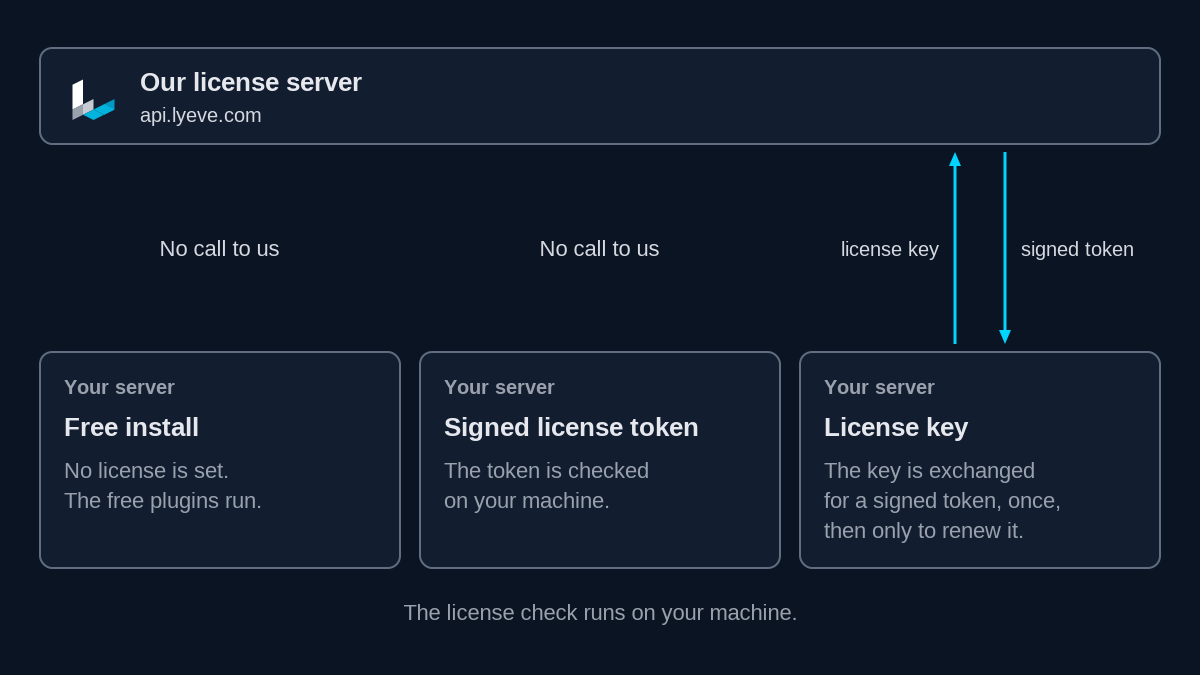 Only a license key makes a call to us, and only to get or renew its token.
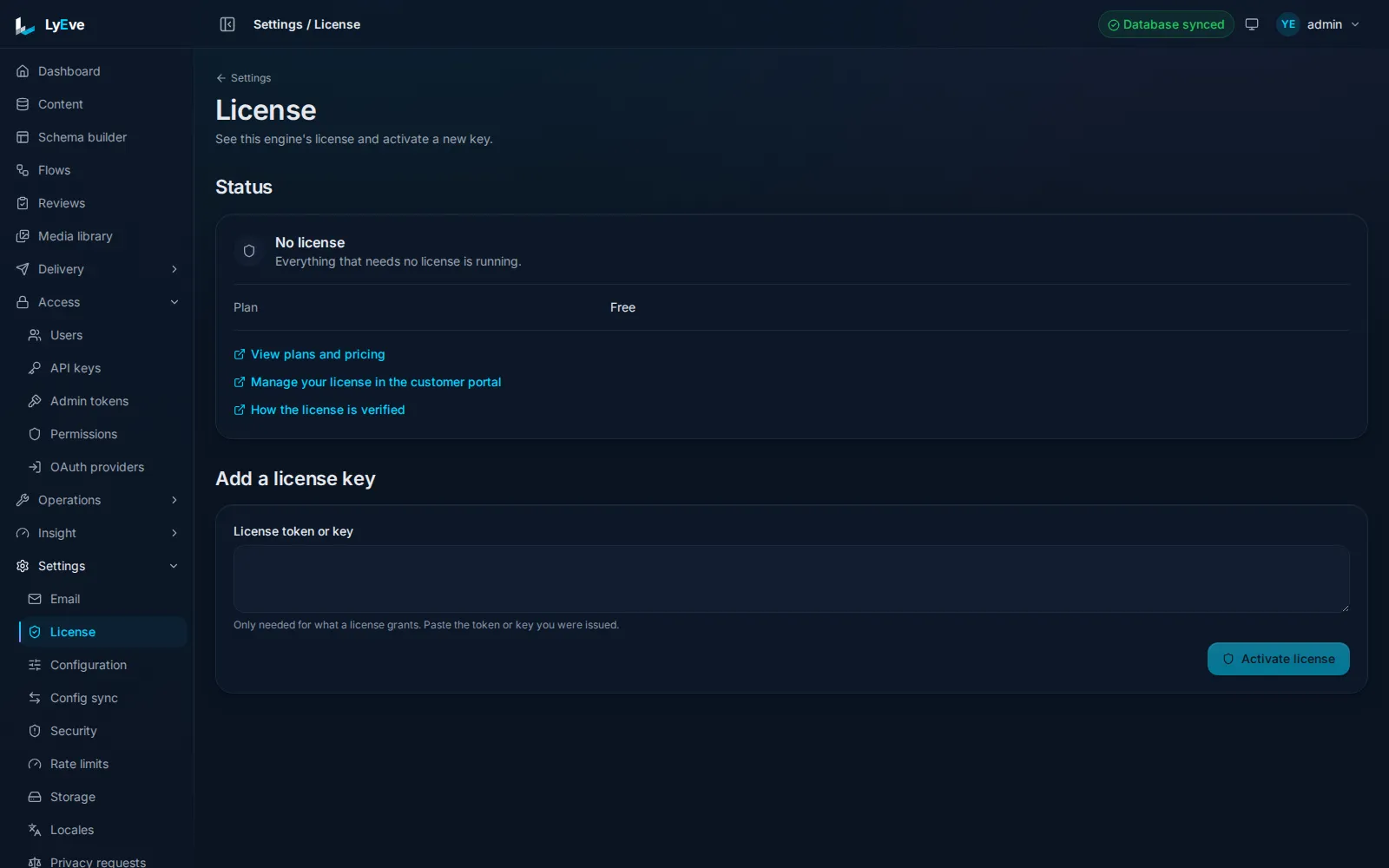 The License page on an install with no license key: everything that needs no license is running.
A token and a key go in the same setting. For a server that must never reach the internet, use a token. The customer portal issues one for the install you name.
What the key exchange carries
The exchange is one POST over https to our license server, https://api.lyeve.com unless you set LYEVE_LICENSE_SERVER_URL. Its body holds three values:
- your license key
- an install id, 32 random hexadecimal characters that the engine generates once and keeps beside its cached license
- the same id again, in a field named
fingerprint
It carries no content, no user and no usage count. Like any connection, it also shows our server the public address yours connects from.
The id stays random as long as the engine can write its state directory. If it cannot, the engine falls back to the INSTANCE_ID setting, which defaults to the host name and the process id. The Docker Compose stack keeps that directory on a volume, and there the id is the random one.
We read the request off a running engine, not only from its source. We set a test key, pointed LYEVE_LICENSE_SERVER_URL at a test server on the same machine, and printed what arrived. The Host and Content-Length lines are left out here, and the key and the id are replaced:
POST /api/v1/license/activate HTTP/1.1
User-Agent: Go-http-client/1.1
Accept: application/json
Content-Type: application/json
Accept-Encoding: gzip

{"license_key":"<your key>","instance_id":"<32 hex characters>","fingerprint":"<the same 32 hex characters>"}
When the exchange happens
- At start, when the engine holds no cached token for that key, or holds one within seven days of expiry. Otherwise it starts on the cached token and calls nobody.
- While it runs, the engine checks every six hours and exchanges the key again only when its token is missing, no longer active, or within seven days of expiry.
- When our server cannot be reached, a token that still verifies stays in force until it expires. With no token that verifies, the install runs the free plugins.
- When our server refuses the key, the engine drops its cached token for that key and runs the free plugins.
What we saw on our own network
On November 11, 2026, we ran the stack from the VPS guide with the LyEve engine v0.62.0 and admin console v0.28.0 and no key. We recorded every packet the engine and the console sent from their first one. The recording covered the first start, setup, sign-in, ten console pages, a new content type and an entry created through the API, and then 17 idle minutes.
- The engine looked up one name, its database's, through Docker's built-in resolver, and connected to the database.
- At start, the engine tried a Redis server on its own loopback address and found none. That traffic never leaves the container.
- The console looked up the proxy's name and called the engine through the proxy.
- Neither sent a packet to any other address. Nothing went to us.
Then we checked that the recording would have caught a call. We set a test key and pointed the license server setting at a test server on the same network. The recording printed the lookup of that server's name and the https connection to it.
Watch it yourself
Save this beside your docker-compose.yml as docker-compose.watch.yml. Two capture containers hold the network of the engine and of the console, and see every packet from the first. The filter drops the traffic you expect: requests to the engine and the console, the engine's database, and the console's calls through the proxy. Because it drops the database port of PostgreSQL, MySQL and SQL Server alike, the file works whichever one your engine uses.
# docker-compose.watch.yml
# One capture container holds the engine's network and another holds the
# console's, from their first packet. Each prints every packet in that
# network except four kinds you expect: requests to the engine (3001, 3002)
# and the console (3002), the engine's database (5432 for PostgreSQL, 3306
# for MySQL, 1433 for SQL Server), and the console's calls to the engine
# through the proxy (8080). Multicast and IPv6 control packets are dropped
# because the host, not the container, sends them.
x-watch: &watch
  image: nicolaka/netshoot
  command: >-
    tcpdump -i any -nn -l
    "(ip or (ip6 and not icmp6))
    and not (dst net 224.0.0.0/4 or dst net ff00::/8)
    and not (tcp port 3001 or tcp port 3002 or tcp port 8080)
    and not (tcp port 5432 or tcp port 3306 or tcp port 1433)"

services:
  watch-engine:
    <<: *watch
    networks:
      default:
        aliases: [engine]
  watch-admin:
    <<: *watch
    networks:
      default:
        aliases: [admin]
  engine:
    network_mode: service:watch-engine
  admin:
    network_mode: service:watch-admin
Start the stack with it, use the install for a while, then read what each container sent:
docker compose -f docker-compose.yml -f docker-compose.watch.yml up -d
docker compose -f docker-compose.yml -f docker-compose.watch.yml logs --no-log-prefix watch-engine
docker compose -f docker-compose.yml -f docker-compose.watch.yml logs --no-log-prefix watch-admin
These are lines from our run:
12:48:35.093613 lo    In  IP 127.0.0.11.53 > 127.0.0.1.43065: 61448 1/0/0 A 10.192.0.4 (38)
12:48:42.163847 lo    In  IP 127.0.0.1.33254 > 127.0.0.1.6379: Flags [S], seq 34867952, win 65495, options [mss 65495,sackOK,TS val 1114511453 ecr 0,nop,wscale 10], length 0
A line with 127.0.0.11 is a lookup through Docker's resolver, and its answer is the address of one of your containers. A line to port 6379 on 127.0.0.1 or ::1 is the Redis check at start. Every other address is traffic leaving the stack, and it is worth asking why it is there.
To go back to the normal stack, which removes the two capture containers:
docker compose up -d --remove-orphansCut it off and see it still runs
The second check takes the route out away. Save this as docker-compose.offline.yml:
# docker-compose.offline.yml
# The stack's network gets no route out of the server.
networks:
  default:
    internal: true
Then restart the stack on that network and ask it three things:
docker compose down
docker compose -f docker-compose.yml -f docker-compose.offline.yml up -d
docker compose -f docker-compose.yml -f docker-compose.offline.yml logs engine | grep -o '"msg":"all plugins started","running":[0-9]*'
docker compose -f docker-compose.yml -f docker-compose.offline.yml exec proxy wget -qO- http://engine:3001/readyz
docker compose -f docker-compose.yml -f docker-compose.offline.yml exec proxy wget -T 5 -qO- http://example.com
The first answer is "msg":"all plugins started","running":32, every free plugin. The readiness answer begins {"status":"ok". The last command prints wget: bad address 'example.com', which shows the stack has no way out. Run this when nobody needs the site, because while the network is cut it cannot be reached from outside either. To go back, run docker compose down and then docker compose up -d.
What leaves when you configure it
Features you set up call the addresses you give them: outbound email, webhooks, sign-in through an OAuth provider, and S3-compatible storage, for example. None of them is on until you configure it, and each goes where you point it. The Verify Offline page below lists more of them.
What your browser loads from elsewhere
The console serves its two typefaces, Inter and JetBrains Mono, from its own address. On our run, every request a signed-in browser made from the console's pages went to that address.
The console's content security policy lets a browser reach its own address and three captcha providers. The captcha scripts load only when you configure captcha. Links in the console to our docs and support pages open only when you select them.
Check the binary itself
Verify Offline runs the same checks on the engine's binary without Docker:
- a trace of every connection it opens
- a count of the name lookups it makes
- a firewall test
The post on Go shows how to copy the binary out of the image.
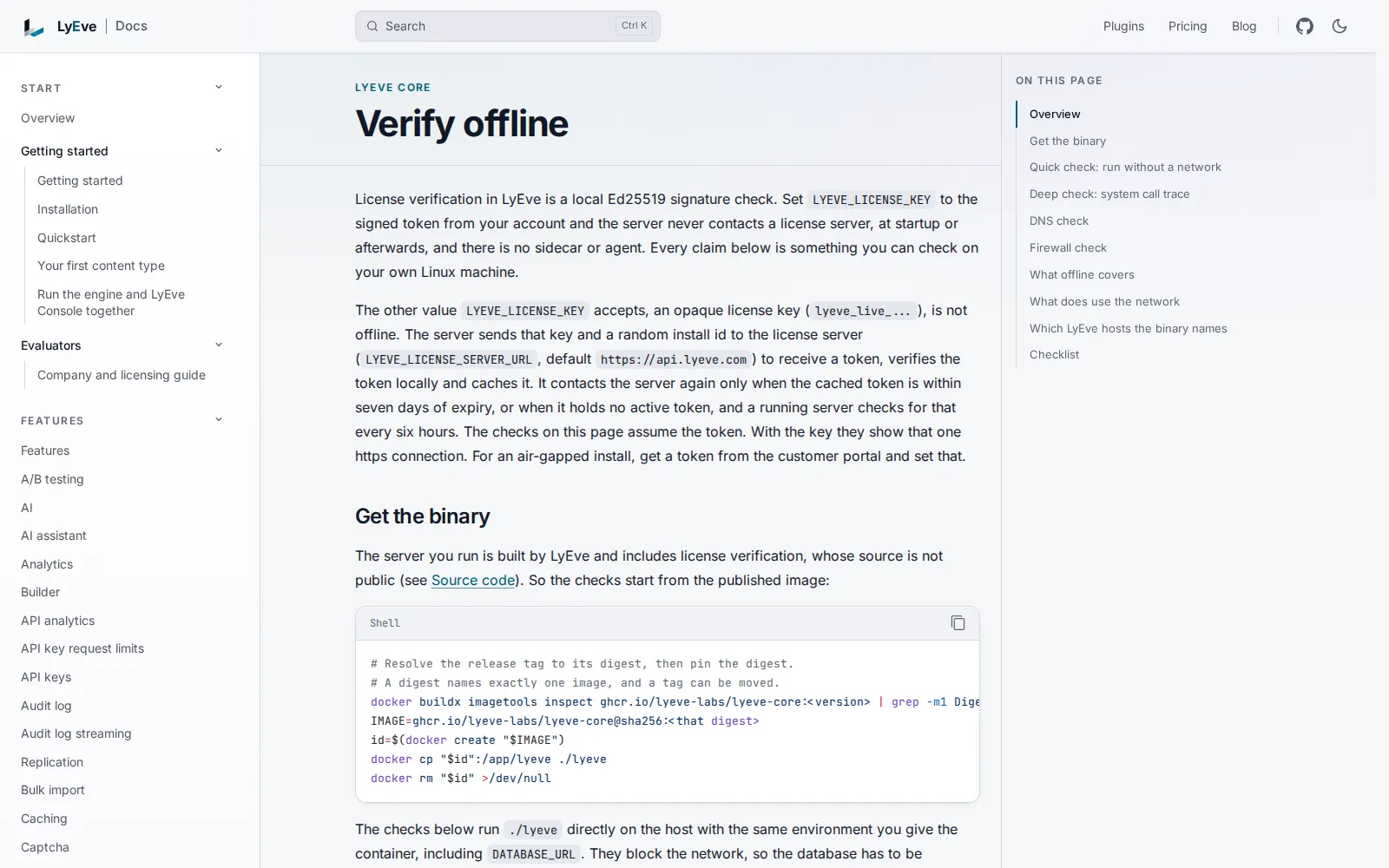 The Verify Offline page on lyeve.com/docs.
Start LyEve on your database
LyEve runs on PostgreSQL, MySQL 8.0 or 8.4, and SQL Server 2019 or later, Azure SQL included. On SQL Server, turn on read committed snapshot isolation before the engine starts: Installation shows how.
Create a database and a user for LyEve. Then keep only your database's DATABASE_URL line uncommented, fill in its host and password, and start the engine on the free tier:
DATABASE_URL="postgres://lyeve:<password>@db.example.com:5432/lyeve?sslmode=require"
# DATABASE_URL="mysql://lyeve:<password>@tcp(db.example.com:3306)/lyeve?parseTime=true"
# DATABASE_URL="sqlserver://lyeve:<password>@db.example.com:1433?database=lyeve"

docker run -d --name lyeve-engine \
  -e APP_ENV=development \
  -e DATABASE_URL="$DATABASE_URL" \
  -e JWT_SECRET="$(openssl rand -hex 32)" \
  -e ENCRYPTION_KEY="$(openssl rand -hex 32)" \
  -p 3001:3001 -p 3002:3002 \
  ghcr.io/lyeve-labs/lyeve-core:latest
The engine reads which database it talks to from the scheme and creates its tables on first start.
The command sets no license key, so the engine makes no call to us.
Then read the quickstart from step 1, which creates your admin account and writes your first entry. With no database yet, its step 0 starts PostgreSQL and the engine together.