Features
SAML single sign-on
Requires a license with the
samlfeature. See pricing.
SAML single sign-on lets your team sign in to LyEve Console through your company's identity provider. LyEve acts as the SAML service provider: it sends people to the provider, checks the signed answer that comes back, and starts a console session. Each tenant has its own providers.
In the console
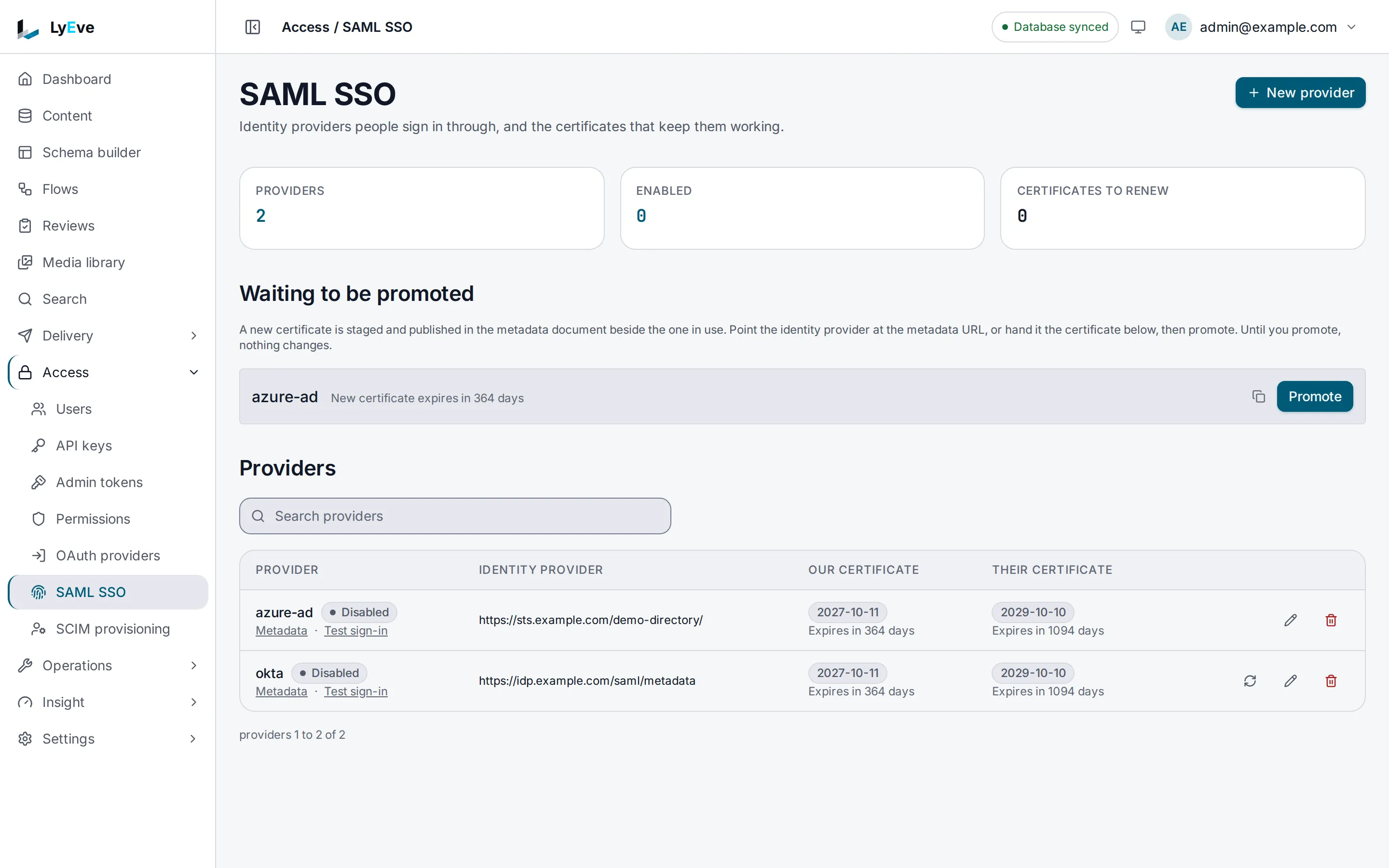
Link to the section In the consoleOpen Access > SAML SSO. The list shows each provider with the expiry of Our certificate and Their certificate, and links to its Metadata and a Test sign-in. Certificates to renew counts the certificates that are expired or close to expiry.
-
New provider asks for the Entity ID, Sign-on URL, Their signing certificate and Attribute mapping from your identity provider. Leave Show on the sign-in page on to put its button on the login page.
-
To rotate our certificate, choose the refresh button on a provider. The new certificate waits under Waiting to be promoted. Once the provider has it, choose Promote.
-
In New provider, Start from offers the templates for Okta, Azure AD and OneLogin. Choosing one fills the NameID format, Attribute mapping and Expect encrypted assertions that provider usually takes, and its hint under Their signing certificate says where the provider shows its certificate.
How it works
Link to the section How it works| Step | What happens |
|---|---|
| Start | The browser opens /api/admin/auth/saml/{provider}. LyEve redirects it to the provider with a signed request. |
| Sign in | The person signs in at the provider. |
| Assertion | The provider posts its answer to /api/admin/auth/saml/{provider}/acs. LyEve checks it and finds or creates the tenant's account by email. |
| Session | LyEve sets the session cookie and redirects to /admin, or to the path given in ?redirect=. |
What you can rely on:
- Sign-in starts from LyEve. An answer the provider sends without a request from LyEve is refused.
- Each assertion is accepted once. A replayed assertion is refused with
409. - An answer larger than 1 MiB, or one carrying a
DOCTYPEor entity declaration, is refused. - The provider can never grant
adminorsuper_admin. Those roles are dropped. A new user with no other role getseditor. - LyEve signs its requests with a certificate it generates for each provider, valid for one year. The private key is encrypted at rest and never returned.
- A sign-in for an email that already has an account in the tenant signs in to that account, with the roles stored in LyEve. The provider decides who may claim which email, so connect only a provider you trust with every account in the tenant.
- An account SAML creates belongs to the tenant whose provider signed it in. An address another tenant holds is a separate account there, and the answer is the same as for an address nobody holds. See accounts a tenant's provider creates.
- A SAML sign-in never signs in an account that holds
super_admin. It is refused as a failed sign-in is.
Turn it on
Link to the section Turn it on- Run with a license that carries
saml. See licensing and tiers. - Set
LYEVE_BASE_URLto the public address of the instance. In production, sign-in refuses to start without it. - Set
SECURE_COOKIE=truewhen the instance is served over HTTPS. - Restart the instance and add a provider in the console or with the API below.
- Give your provider the addresses in Register LyEve with the provider.
On an instance with several tenants, the sign-in routes take the tenant from the domain the request arrives on. Map a domain to each tenant that uses SAML. See tenants.
Sign in as a super admin. Read the settings a template holds over the API.
Start from in the console fills the same settings into New provider.
If you work in the console, sign in over the API to get a token, as
Turn on drafts and publishing
shows, and keep it in TOKEN.
-
List the templates:
Shell curl http://localhost:3001/api/admin/saml-templates \-H "Authorization: Bearer $TOKEN"JSON [{ "key": "okta", "name": "Okta", "description": "Okta Workforce Identity Cloud SAML 2.0 integration." },{ "key": "azure-ad", "name": "Azure AD / Entra ID", "description": "Microsoft Azure Active Directory / Entra ID SAML 2.0 integration." },{ "key": "onelogin", "name": "OneLogin", "description": "OneLogin SAML 2.0 SSO integration." }] -
Read the settings Okta expects. Nothing is saved:
Shell curl -X POST http://localhost:3001/api/admin/saml-templates/apply \-H "Authorization: Bearer $TOKEN" \-H "Content-Type: application/json" \-d '{"key": "okta"}'The answer holds
key,name,descriptionand aconfigwith the signature settings, the attribute mapping and anidp_cert_hintsaying where Okta shows its certificate.
Create the provider with the values from Okta:
Console v0.28.0
- Open Access > SAML SSO and choose New provider.
- Enter
oktain Name. It is the label on the sign-in button and the name in the provider's URLs. - Paste Okta's identifier into Entity ID, its single sign-on URL into
Sign-on URL and its certificate into Their signing certificate.
Attribute mapping starts as
email=emailandroles=groups. - Leave Show on the sign-in page on and choose Create. The page says Created okta, and the row links its Metadata.
Engine API v0.62.0
You need a super admin token in TOKEN. The
quickstart shows how to get one.
curl -X POST http://localhost:3001/api/admin/saml-providers \ -H "Authorization: Bearer $TOKEN" \ -H "Content-Type: application/json" \ -d '{ "name": "okta", "entity_id": "http://www.okta.com/exk1a2b3c4d5e6f7g8h9", "sso_url": "https://example.okta.com/app/example_lyeve/exk1a2b3c4d5e6f7g8h9/sso/saml", "idp_cert": "-----BEGIN CERTIFICATE-----\nMIID...\n-----END CERTIFICATE-----", "attributes_mapping": {"email": "email", "roles": "groups"}, "enabled": true }'The answer is 201 with the provider, its sp_cert_active, and
sp_cert_expires_at and idp_cert_expires_at. Copy id into
PROVIDER_ID.
Give Okta the metadata at
http://localhost:3001/api/admin/auth/saml/okta/metadata, which needs no
sign-in, as Register LyEve with the provider
shows. Then open the console's login page. It offers Sign in with
okta, which sends you to Okta and back into the console as the account with
your email.
Register LyEve with the provider
Link to the section Register LyEve with the providerFor a provider named okta, give your identity provider:
| Setting at the provider | Value |
|---|---|
| Assertion consumer service (ACS) URL | {LYEVE_BASE_URL}/api/admin/auth/saml/okta/acs |
| SP entity ID (audience) | The same ACS URL |
| SP metadata | {LYEVE_BASE_URL}/api/admin/auth/saml/okta/metadata |
Many providers read everything from the metadata URL. The provider must send
the user's email in the attribute named in attributes_mapping.email.
To sign in, send the browser to /api/admin/auth/saml/okta. Add
?redirect=/admin/content to land on another page of the console afterwards.
Only a path on the same site is accepted.
Provider fields
| Field | Meaning | Default |
|---|---|---|
name | Used in the sign-in URL. Unique in the tenant | required |
entity_id | The provider's entity ID | required |
sso_url | The provider's single sign-on URL | required |
slo_url | The provider's single logout URL | none |
idp_cert | The provider's signing certificate, PEM. Never returned | required |
name_id_format | The NameID format to request | urn:oasis:names:tc:SAML:1.1:nameid-format:emailAddress |
attributes_mapping | Which assertion attributes hold the email and the roles | {"email": "email", "roles": "groups"} |
want_assertions_signed, want_response_signed, sign_authn_requests | Signature requirements. A new provider always starts with all three on | true |
want_authn_signed, encrypt_assertions | Further signature and encryption options | false |
enabled | Whether the login page offers it | false |
Rotate the signing certificate
Link to the section Rotate the signing certificateRotate in two steps so sign-in never breaks:
Console v0.28.0
- On Access > SAML SSO, choose the refresh button on the provider. The new certificate is listed under Waiting to be promoted, and the metadata then lists both certificates.
- Wait until the provider has read the new metadata, or hand it the new certificate with Copy certificate. Then choose Promote. The dialog asks Promote the new certificate for okta?. Choose Promote, and the page says okta is using the new certificate.
Engine API v0.62.0
-
Stage a new certificate. The answer shows it as
sp_cert_next, and the metadata then lists both certificates:Shell curl -X POST http://localhost:3001/api/admin/saml-providers/$PROVIDER_ID/prepare-cert \-H "Authorization: Bearer $TOKEN" -
Wait until the provider has read the new metadata, or upload the new certificate there by hand. A token expires while you wait, so sign in again and put the new token in
TOKEN. Then promote it:Shell curl -X POST http://localhost:3001/api/admin/saml-providers/$PROVIDER_ID/rollover-cert \-H "Authorization: Bearer $TOKEN"
Both calls return the provider. Promoting before staging answers
400 no next certificate configured.
Settings
Link to the section Settings| Variable | What it does | Default |
|---|---|---|
LYEVE_BASE_URL | Public address the ACS and metadata URLs are built from. Required when APP_ENV is production. | unset |
APP_ENV | Outside production, a missing LYEVE_BASE_URL falls back to the request's host. | production |
SECURE_COOKIE | Marks the sign-in cookies Secure. | false |
JWT_EXPIRY_SECS | Lifetime of the session a sign-in creates. | 900 |
If you set LYEVE_PLUGINS, include saml in it.
Every route that needs a role takes a signed-in session. An admin token is
refused on them with 403.
Sign-in, providers and templates
| Method | Path | Role | Purpose |
|---|---|---|---|
GET | /api/admin/auth/saml-providers | public | Names of enabled providers, for login buttons |
GET | /api/admin/auth/saml/{provider} | public | Start sign-in. Redirects to the provider |
POST | /api/admin/auth/saml/{provider}/acs | public | Where the provider posts its answer |
GET | /api/admin/auth/saml/{provider}/metadata | public | LyEve's metadata XML for that provider |
GET | /api/admin/saml-providers | admin | List providers, including disabled ones |
POST | /api/admin/saml-providers | super_admin | Add a provider. 201 |
PUT | /api/admin/saml-providers/{id} | super_admin | Change a provider |
DELETE | /api/admin/saml-providers/{id} | super_admin | Remove a provider. 204 |
POST | /api/admin/saml-providers/{id}/prepare-cert | super_admin | Stage a new signing certificate |
POST | /api/admin/saml-providers/{id}/rollover-cert | super_admin | Promote the staged certificate |
GET | /api/admin/saml-templates | admin | List the templates |
GET | /api/admin/saml-templates/{key} | admin | Read one template |
POST | /api/admin/saml-templates/apply | super_admin | Return a template's settings without saving anything |
| Status | Message | Cause |
|---|---|---|
404 | provider not found | No enabled provider of that name in the tenant. |
401 | SAML authentication failed | The answer did not verify, or LyEve did not ask for it. |
409 | assertion already consumed | The same assertion was sent twice. |
401 | identity provider did not provide an email address | The email attribute is missing. |
Every other error
| Status | Message | Cause |
|---|---|---|
401 | authentication failed | The account is disabled or expired, holds super_admin, or the SCIM directory deactivated the person. |
400 | no next certificate configured | rollover-cert was called before prepare-cert. |
400 | key is required | apply was called without a template key. |
404 | template not found | No template has that key. |
415 | unsupported media type, expected application/json or multipart/form-data | A body in any other format on a provider or template route. |
404 | The requested endpoint does not exist. | The instance started without a license that carries saml. |
402 | payment_required | The license stopped carrying saml while the instance was running. |
Troubleshooting
Link to the section Troubleshooting- Sign-in fails right after the provider's login page. Check that the ACS
URL and entity ID at the provider match the table above, and that
LYEVE_BASE_URLis the address users reach. - Users land without the roles they expect. Check
attributes_mapping.rolesagainst the attribute your provider sends. An existing account keeps its LyEve roles.adminandsuper_adminare never taken from the provider, so grant them in LyEve. - A super admin cannot sign in through SAML. That is by design. A super admin signs in another way, such as a password.
Related
Link to the section Related- Sign-in options: every way to sign in, side by side.
- SCIM provisioning: create and remove accounts from the same directory.
- OAuth sign-in: for OpenID Connect providers.
- Tenants: map a domain to each tenant.