LyEve Console
Drafts, publishing and revisions
In a collection that uses draft and publish, every entry is either a draft, published
or archived. You save work as a draft and publish it when it is ready. When history is on
for the collection, every change is kept, so you can look back through an entry's history and
bring an earlier version back. This page covers those steps in LyEve Console. You need the
admin or super_admin role.
What each status means, and how revisions are kept, is explained on the data model page. The same steps over the Admin API, with archiving and scheduling, are in Content lifecycle.
Your site sees a draft only when its credential may also edit the collection. A site that reads with a read-only key shows published entries alone.
See an entry's status
Link to the section See an entry's statusOpen Content, pick the collection and open the entry. In a collection that uses draft and publish:
- The collection's list has a Status column.
- The entry page shows the status in a badge at the top, beside Publish or Unpublish.
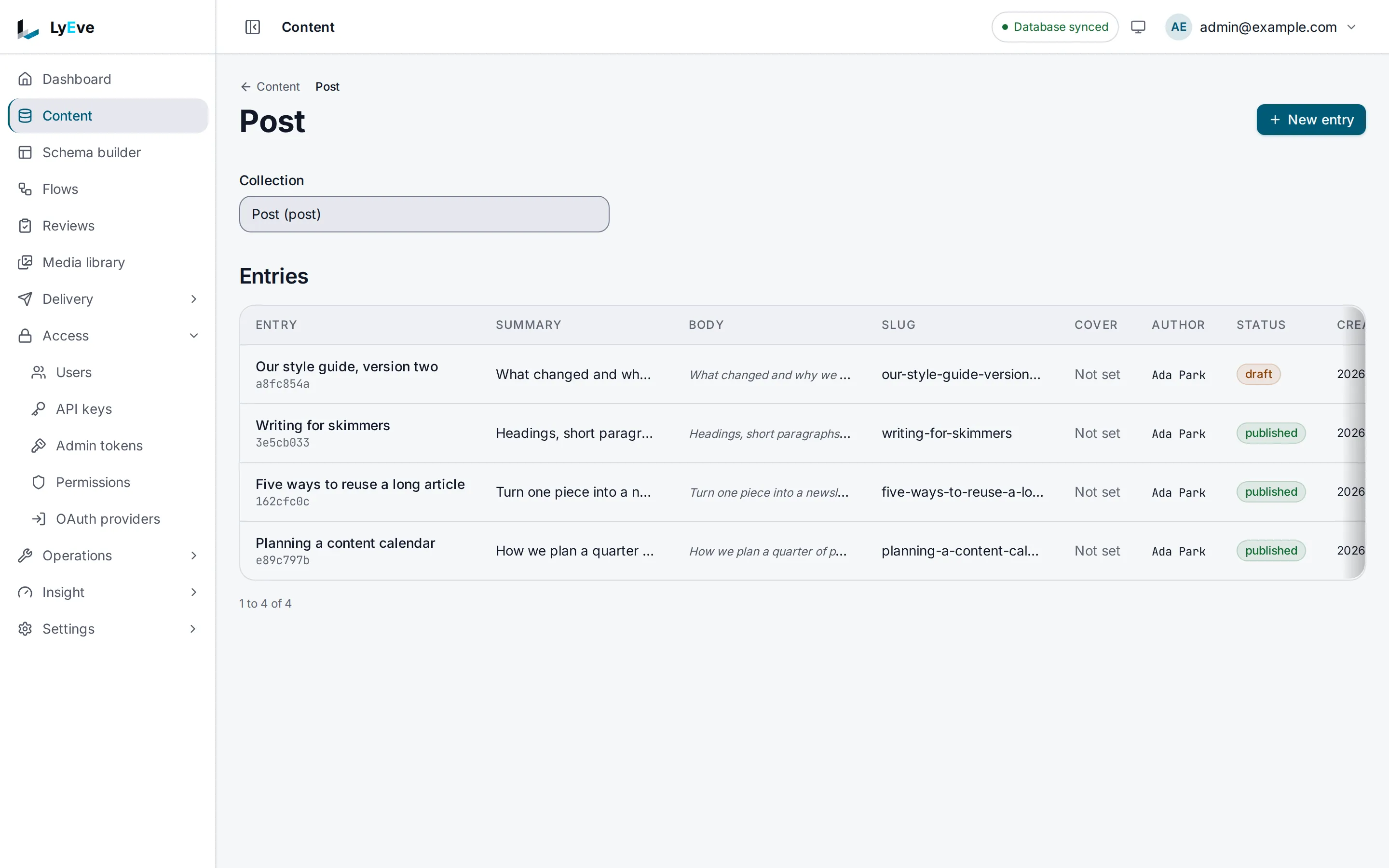
A collection without draft and publish shows no status and no publish buttons. Its entries are live as soon as they are saved.
Publish an entry
Link to the section Publish an entry- Open the entry.
- Choose Save if you have unsaved changes. Saving keeps the current status, so a draft stays a draft.
- Open the entry again and choose Publish.
The badge changes to published, and the time is recorded as the entry's publish time.
Take an entry back to draft
Link to the section Take an entry back to draftOpen a published entry and choose Unpublish. The entry becomes a draft again, so you can keep editing before it goes live. Publishing it again records a new publish time.
Look back through the history
Link to the section Look back through the historyWhen history is on for the collection, every save, publish and restore that changes the entry keeps a revision of it. A save that changes nothing keeps none. History is off until an administrator turns it on under Settings > Content history, for every collection or the ones they choose. Content history explains the settings and how long revisions are kept. When the collection keeps no history, the entry page says History is off for this type and an administrator sees a link to turn it on.
To read the revisions:
- Open the entry.
- Choose History. The number beside it counts the revisions.
- The Revision history panel lists each revision with its date and the fields it held.
The first revision is the entry as it was when history started for it. A revision never changes once written. Retention may remove older revisions after the time or the count your administrator set, and always keeps the newest.
Restore an earlier version
Link to the section Restore an earlier version- In Revision history, choose the revision you want.
- Choose Restore.
The entry takes that revision's content and status, and the restore is saved as a new revision. A restore erases nothing, so it can itself be undone by restoring the revision before it.
What the console does not do
Link to the section What the console does not doThese are on the Admin API, in Content lifecycle:
- Archive an entry you want to retire but keep.
- Schedule an entry to publish or archive itself at a set time.
- Compare two revisions field by field.
- Write a change note with a save, shown later in the history.
To publish several entries together, open Releases in the sidebar, or use the Release
card on each entry page. Releases need a license with content-pro, and
Content releases explains how they go out.
To put entries through sign-off before they go live, use editorial review. Its Review card on the entry page moves an entry through each stage and can publish it on final approval.
Where to go next
Link to the section Where to go next- Creating and editing content: the fields you work with day to day.
- Roles and permissions: who may publish.
- Content lifecycle: archiving, scheduling and revisions over the API.