LyEve Console
Search and organization
There are two ways to find content in LyEve Console. Browsing works on every install:
narrow the list of collections, open one, and page through its entries. Full-text search
finds entries by the words in them, and needs a license with the Search
feature. This page covers both in the console. You need the admin or super_admin role.
To filter and page entries from your own code, see Content lifecycle for the Admin API and the data model for the Content API.
Browse collections
Link to the section Browse collectionsIncluded free on every install.
Open Content. The page lists every collection in your tenant.
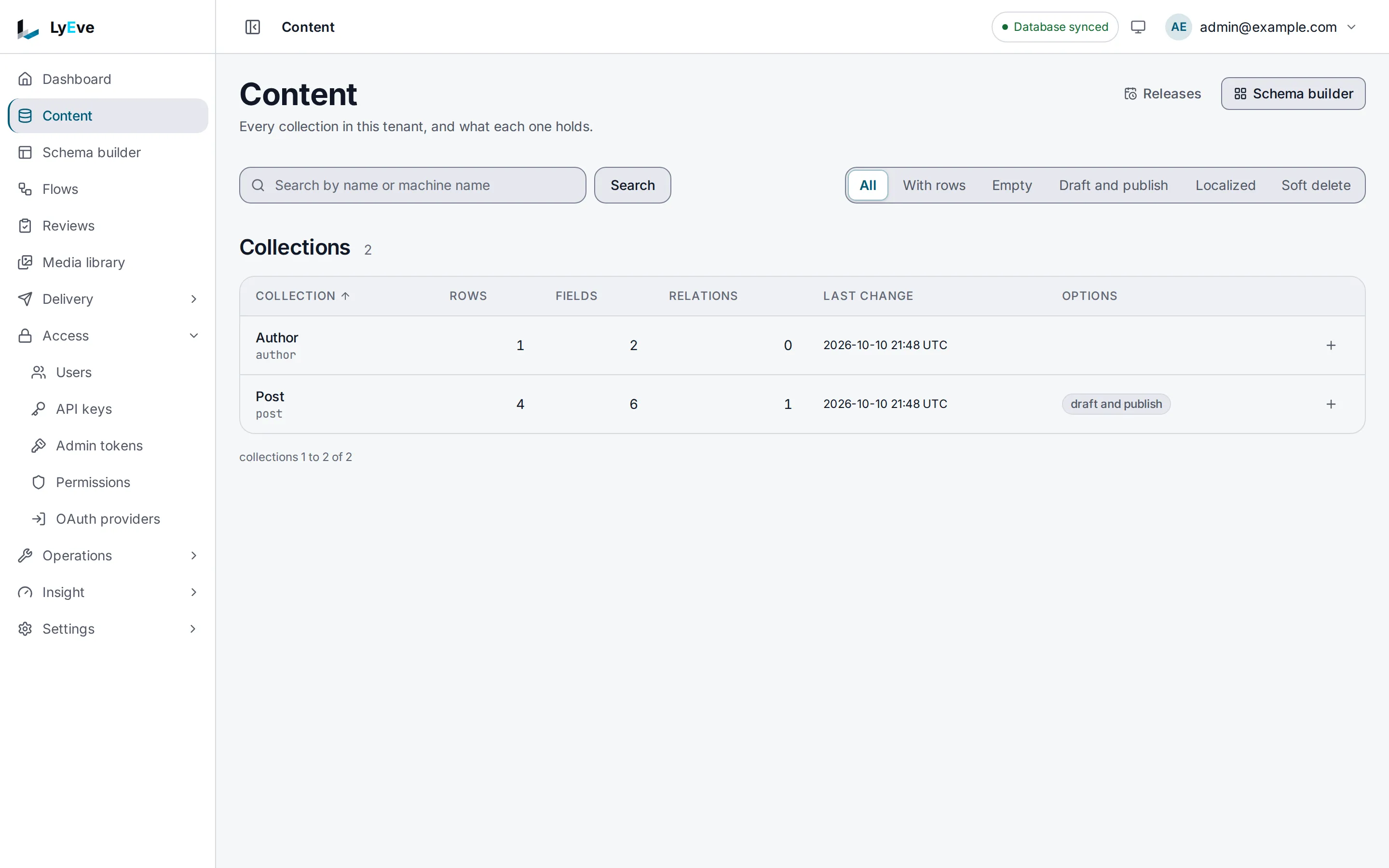
- Find a collection. Type part of its name in Search by name or machine name and choose Search.
- Narrow the list. The chips above the table show All, With rows, Empty, Draft and publish, Localized or Soft delete collections.
- Sort. Choose the Collection, Rows, Fields or Last change column header to sort by it.
Page through entries
Link to the section Page through entriesOpen a collection to see its entries, the most recently changed first.
- The Entry column shows each entry's name with the start of its id. A collection with draft and publish also has a Status column.
- The pager under the table moves between pages and shows the total.
- The Collection box at the top jumps to another collection without going back.
The entry list has no status filter and no sort. To find entries by their words, or to narrow by status, use search.
Search by words
Link to the section Search by wordsRequires a license with the
searchfeature. See pricing.
Open Search, type in Search content and choose Search. Search looks in every entry's title, body and tags, in every collection and every status.
Each result shows the entry's title, its collection and status, its slug and its tags, with
the matching words marked. A rank number shows how well it matched: higher is better, and a
match in the title counts more than one in the body. The page shows the best 20 matches. If
nothing matches, it says No results for and your words.
Without the license, Search is not in the sidebar.
Make search understand your words
Link to the section Make search understand your wordsThe Search page holds the settings that shape every search in your tenant.
- Synonyms. Choose New synonym, enter a Term and what it Also matches, and choose Create. A search for exactly the term then finds the other words too, but not the other way round. Enter terms in lower case.
- Ranking weights. Set how much a match in the Title, the Body and the Tags counts, from 0 to 10, and choose Save. These apply to every collection that has no weights of its own.
- Public search. Under Searchable by anyone, check each collection your site may search without signing in, and choose Save. Your site's developer then calls the public search route described on Search. A public search matches every field of a listed collection, and its snippets can quote any of them, so list only collections whose fields may all be public.
Last 30 days shows how many searches ran and how many found nothing. A super_admin also
sees Rebuild index, which is needed once after your operator moves search to
Elasticsearch or Meilisearch.
Where to go next
Link to the section Where to go next- Search: the API, analytics and the search backends.
- Creating and editing content: open and edit what you find.
- Drafts and publishing: what each status means.